


Frequent support questions
need support? ANSWERED.
See the frequently asked support questions below. if these don't answer your questions or the videos and manuals below fill out the support form.
The status light on the motor indicates different conditions.
🔴 Red Light
The device cannot detect playable content.
Possible causes include:
- SD card not inserted.
- SD card inserted incorrectly.
- Damaged SD card.
- LED blade not connected correctly.
🟢 Green Light
The device is operating correctly but no playable hologram files were found on the SD card.
Upload content through the app or copy compatible files onto the SD card.
🔵 Blue Light
The internal clock or synchronization system is waiting to connect.
For single fan displays this is usually temporary.
For synchronized displays, check network or synchronization settings.
Don’t worry—this is completely normal.
For shipping efficiency and to minimise the risk of damage during transit, some Holofex products are shipped in multiple parcels.
Items that are commonly shipped separately include:
- Display stands
- Carry cases
- Protective covers
- Hologram fans
- Accessories
In most cases, the remaining parcel(s) will arrive within 48 hours of the first delivery.
If more than 48 hours have passed since your first parcel was delivered and the rest of your order hasn’t arrived, please contact our support team with your order number and we’ll investigate the shipment for you.
Thank you for ordering a custom hologram!
After placing your order, you’ll automatically receive an email requesting the information we need to create your hologram.
Please check:
- Your Inbox
- Your Junk or Spam folder
- Your Promotions folder (Gmail)
The email contains a Leads.Reacher form where you can upload your logo, videos, images or design requirements.
Our design team will begin creating your hologram once we’ve received your completed form and all required files.
Can’t find the email? Contact our support team and we’ll resend the form for you.
Most Holofex orders are processed and dispatched within 24–48 business hours. Once your order has been shipped, you’ll automatically receive an email containing your tracking number.
Standard Products
- Orders are typically dispatched within 24–48 business hours.
- Tracking information is emailed as soon as your order is collected by the courier.
Custom & Large Products
Some products require additional preparation before dispatch, including:
- Custom holograms
- HoloSync displays
- Holographic cabinets
- Large hologram fans (150cm–200cm)
- Other made-to-order products
These products require longer processing times, so tracking information may not be available immediately.
International Orders
For orders shipped outside Australia, the USA and Canada, tracking works slightly differently.
- Standard delivery generally takes approximately 14 business days.
- Tracking is normally updated once the parcel reaches the destination country and enters the local courier network.
- This “last-mile” tracking can take up to 7 days to become active after dispatch.
If your order has exceeded these timeframes and you still haven’t received a tracking number, please contact our support team with your order number and we’ll be happy to assist.
If your hologram fan powers on but no hologram is displayed:
✔ Ensure the SD card is fully inserted into the motor.
✔ Open the correct mobile app and connect to your device.
✔ Confirm holograms have been uploaded successfully.
✔ Check that your files are in MP4 format with a black background.
✔ Make sure the blades are installed correctly with the LED lights facing forwards.
✔ Restart the device after uploading new content.
If your device isn’t appearing:
- Restart the hologram fan.
- Close the app completely.
- Wait 15 seconds.
- Reconnect to the device’s Wi-Fi.
- Disable mobile data.
- Ensure your phone isn’t connected to another Wi-Fi network.
If multiple hologram fans are nearby, verify you’re connected to the correct device.
Different Holofex products use different apps. See your instruction manual or download below for the QR code to download.
Smaller units 42CM use the Holoscope app
F series and U series uses Spin Display
150 & 180 series 3d Circle
If your Holofex device doesn’t power on:
- Ensure the power adapter is securely connected to both the wall outlet and the device.
- Check that the power outlet is switched on.
- Confirm you’re using the original Holofex power supply.
- If power is reaching the device, the LED blades should illuminate briefly during startup.
- If there are still no lights or movement, contact Holofex Support.
You dont have to be a graphic designer in fact quite the opposite. Holofex Hologram fans comes with easy software solutions. There are 4 ways to make your holograms
1. Do it yourself. Simply any 3d animation on a black background will work.
2. Holofex studio. Holofex studio is a web based platform to help you create holograms.
3. AI HoloLab. Use our subscription based AI HoloLab to let our Holofex AI generate amazing and hologram fan specific content.
4. Designed for you. Holofex design team can create a hologram for you.
 Learn more about getting your hologram
Yes.
Holofexl holographic fans allow you to upload your own:
- Logos
- Videos
- Images
- Animations
- Product showcases
- Marketing messages
At Holofex, every display includes software that makes it easy to create, upload and manage your holographic content without requiring advanced design experience.
Holofex provides a design studio for free with any purchase. This allows you to create 3d objects including your Logo and animate with effects.
 Learn More
This is one of the most common support requests.
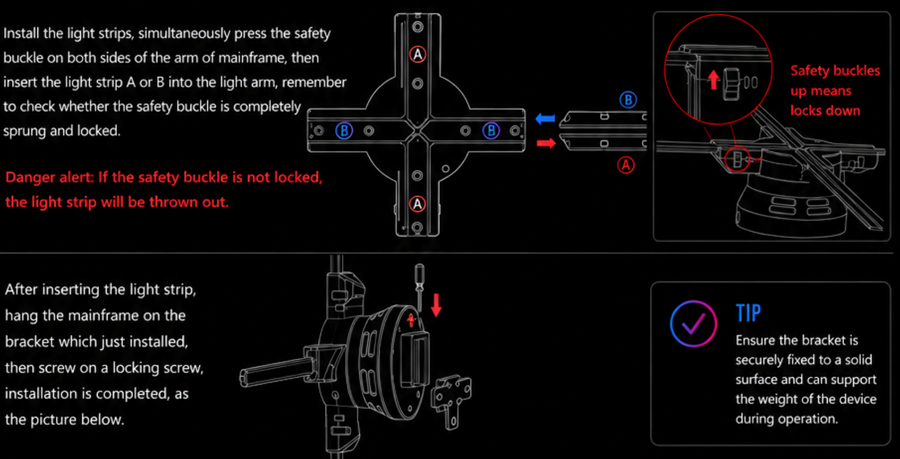
Usually the blades have not been installed correctly.
Please check:
- Blade A is installed into Slot A.
- Blade B into Slot B.
- Blade C into Slot C.
- Blade D into Slot D (if applicable).
The blades are individually balanced and cannot be mixed.
Also ensure:
- The LED lights face forwards (towards the audience).
- The blades are pushed completely into the motor.
- Each blade clicks firmly into place.
If one blade stays dark:
- Turn off the device.
- Remove the blade.
- Inspect the gold connector pins.
- Remove any dust or debris.
- Reinstall the blade securely.
If the blade still doesn’t illuminate, contact Holofex Support.
This usually means:
- One blade isn’t connected correctly.
- One LED strip has failed.
- A blade is loose.
Remove and reinstall all blades before testing again.
If the blades are correctly installed:
- Turn the power off.
- Remove each blade.
- Reinstall every blade into its matching slot.
- Check for bent connectors.
- Ensure each blade is fully inserted.
If the problem remains, contact Holofex Support with photos of the blade installation.
Possible causes include:
- Dirty blades.
- Low-resolution content.
- Incorrect viewing distance.
- Bright direct sunlight.
- Incorrect LED orientation.
For the best effect, use high-resolution hologram videos with a black background and position the display against a darker backdrop where possible.
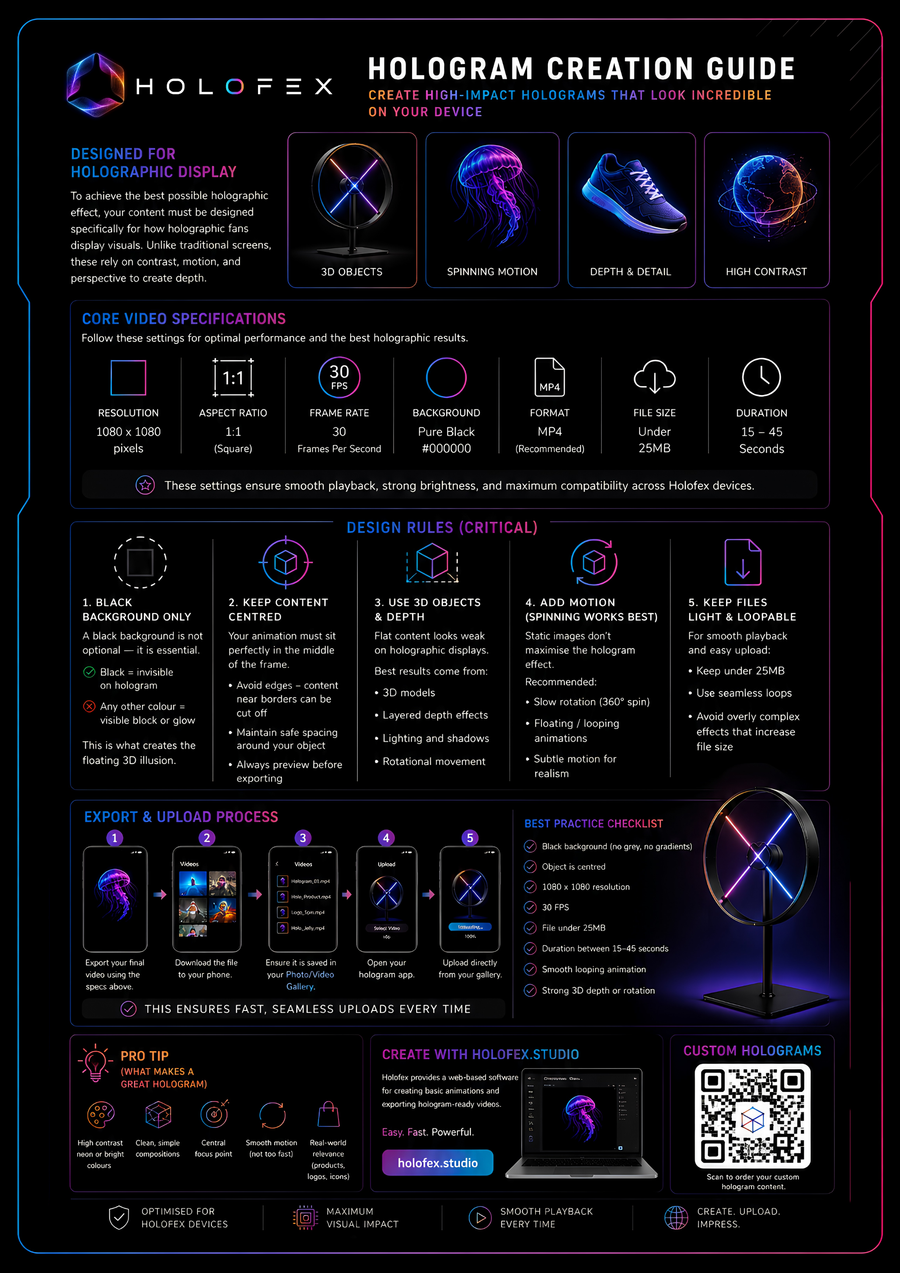
If uploading succeeds but nothing displays:
- Check the video is in MP4 format.
- Ensure the background is black.
- Confirm the upload completed successfully.
- Verify the file has been activated inside the playlist.
- Restart the hologram fan.
This is usually caused by dust building up on the blades during operation.
To clean your device:
- Switch off the power.
- Allow the motor to cool.
- Wipe the blades with a soft, dry microfiber cloth.
- Use a small soft brush around connectors if required.
Do not use:
- Alcohol
- Solvents
- Chemical cleaners
- Water
Regular cleaning helps maintain the best image quality.
Holofex hologram fans are not waterproof.
They may be used in sheltered outdoor locations but must not be exposed to:
- Rain
- Heavy moisture
- Direct water spray
- Dust storms
- Extreme weather
For outdoor installations we recommend using a suitable protective enclosure.
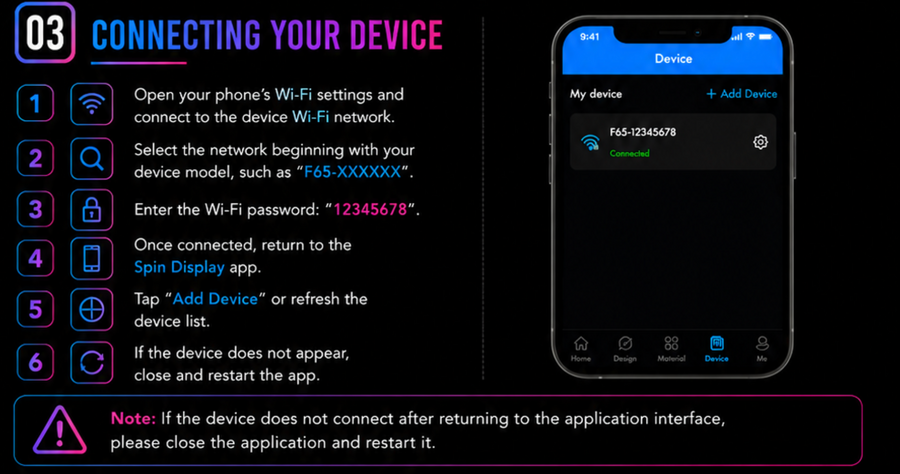
Most connection problems are caused by the phone remaining connected to home or office Wi-Fi.
To connect successfully:
- Turn on your Holofex device.
- Open your phone’s Wi-Fi settings.
- Connect directly to the Holofex Wi-Fi network.
- The default password is:
12345678
- Turn OFF mobile data if your phone automatically switches networks.
- Wait 10–15 seconds after connecting before opening the app.
Once connected, open the correct Holofex app.
MP4 video and common image formats (PNG, JPG) work out of the box. For best results use content with a pure black background — black renders as transparent air on a hologram fan.
This is completely normal.
Commercial hologram fans generate heat during extended use.
Allow the device to cool before servicing or removing the blades.
To keep your Holofex display performing at its best:
- Clean the blades regularly using a dry microfiber cloth.
- Check blade connectors for dust or debris.
- Ensure all blades remain securely installed.
- Keep firmware and apps updated where applicable.
- Avoid installing the device in wet or dusty environments.
Routine maintenance will maximise image quality and extend the life of your display.
Absolutely. Our team produces professional custom animations from your logos, products or ideas — or browse thousands of ready-made holograms in the HoloStore.
We ship worldwide from local warehouses in the USA and Australia. Every device includes a 12-month warranty and a 14-day money-back guarantee (T&Cs apply).
No answers matched your search — but we're happy to help directly.
Contact our support teamMANUALS & DOWNLOADS
EVERYTHING, IN WRITING.
Installation manuals, quick-start guides, the Holofex app and content specs — filter by product and grab what you need.
Can't find the document you need? Ask our support team below→
Raise a support ticket
HAVING ISSUES? HOLOFEX CAN HELP
Tell us about your issue by filling out a support ticket below. We will be in contact shortly to help you solve any problems. Please read all supporting documentation found on this page.
Support will usually be in contact within 24 hours we appreciate your patience
VIDEO GUIDES
WATCH. SET UP. DISPLAY.
Step-by-step video walkthroughs for every device — from unboxing to your first hologram. Each guide has downloadable written instructions.
Using the app (U & F series)
This video goes through step by step how to upload holograms and control your device
Setting up the cover
Watch if you have a Holopack or have purchased a premium cover. explains the setup.
HDMI live sync setup
Plug the HDMI controller into any computer and mirror your screen in mid-air with zero delay.
ALL GUIDES
How Holofex Works
Plug In
Set up your display in under 5 minutes.

Upload Your Content
Upload via Wi-Fi Direct in seconds.
Start Attracting Visitors
Watch your booth come to life.


Create Without Limits
Holofex Studio
Turn ideas into breathtaking holographic experiences in minutes. Holofex Studio makes it easy to upload, organise and manage your holographic content, giving you complete control over every display from your mobile device or computer.
Describe it.
Generate it.
Display it.
Pick a prompt and watch Holofex Studio's AI turn it into breathtaking holographic content in seconds. Try it:


